DIY Smart home project: Restoring the wall switch
Background
In a previous post, I wrote about building a presence sensor to automatically turn my bedroom lights on and off (smart bulbs connected to Home Assistant). However, I still had to solve the wall switch problem.
Problem
A normal light switch interrupts mains power to the bulb. This is really bad for smart bulbs. They need continuous power to stay connected to the network (WiFi, in my case), which allows them respond to commands. So every time the wall switch is flipped, it cuts power to the bulb, breaking the whole smart home workflow. The fix was to tell people "don't touch the switch!", but that gets old, and you're fighting against muscle memory.
What's more, when the presence sensor doesn't work, it really sucks to hunt for your phone, just to SWITCH ON A LIGHT. In those moments, it truly feels like an Internet of Shit. My first attempt at fixing this was to build a "control center": I mounted a cheap tablet to the wall near the switch, and opened the Home Assistant page in a browser. This didn't work well; the tablet was too slow, ran out of battery often, and had flaky voice controls.
Nothing beats a physical button, truly. I've been itching to get back into building for a while, so I decided to fix this.
Goals
I set myself two goals:
- Cover up the original switches, so they can't be flipped by accident or habit, but keep them accessible as a kill switch.
- Provide alternative physical buttons to restore the tactility provided by the wall switch.
Picking an approach
I used Gemini and Claude for some brainstorming. One option was to install smart relays behind the existing switch, but I preferred not to mess with the wiring. Ultimately, I landed on this setup:
- Hardware: A battery-powered Zigbee button, which would talk to a Zigbee coordinator (hub), connected to my Home Assistant server. The wall switch would be covered with a switch cover, and the button mounted on it. So we end up with a new switch in the same location as the old one.
- Software: Automations in Home Assistant, triggered by the button's events.
The key decisions for me were:
- Zigbee over WiFi: One of the most important things for switching is latency. Waiting 3 seconds to see the effect after pressing a switch is not fun. Zigbee is great for minimizing latency. With WiFi, every time the device woke from sleep, it would need to do the connection handshake, retrieve an IP, and so on, which would add seconds of latency.
- Battery over mains: The switch needed to be simple, with no cords dangling around, similar to the existing wall switches. This ruled out the option of building something custom with an ESP32, as they are more power-hungry, even with deep sleep.
Equipment
After some research, I settled on:
- Coordinator: Sonoff Zigbee 3.0 USB Dongle Plus (amazon). It plugs in directly to my Home Assistant server (Raspberry Pi) as a USB dongle.
- Button: Aqara Mini Switch (specs, amazon). A key feature here is support for different click modes—single press, double press, and long press—so one button can do multiple actions. Aqara says it requires their own coordinator, the Aqara Hub, but Zigbee2MQTT (more on that later) and Reddit say it works fine with any standard Zigbee coordinator.
- Switch cover: A generic EU-compatible switch cover from Amazon.
Step 1: Setting up the Zigbee integration and coordinator
The button communicates to the coordinator via Zigbee, but there are different options for how to connect with Home Assistant.
- Zigbee2MQTT: This is the older, more common protocol. The coordinator receives messages from the Zigbee devices and published them to an MQTT topic. Zigbee2MQTT then runs on the server, and allows Home Assistant (or some other service) to consume this topic.
- Zigbee Home Automation (ZHA): This is a newer, native Home Assistant integration, where Home Assistant receives messages from the coordinator directly.
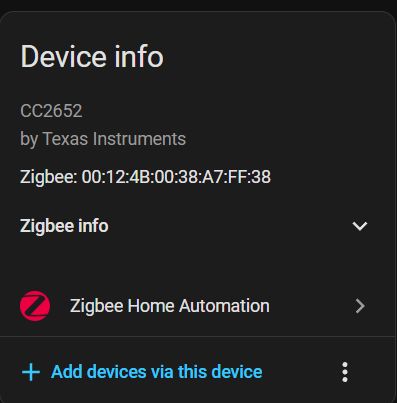
My chosen coordinator uses the Texas Instruments CC2652P chip, which is supported by both Zigbee2MQTT and ZHA. I decided to go with ZHA, to minimize the number of moving parts.
I shut down Home Assistant and plugged in the coordinator.
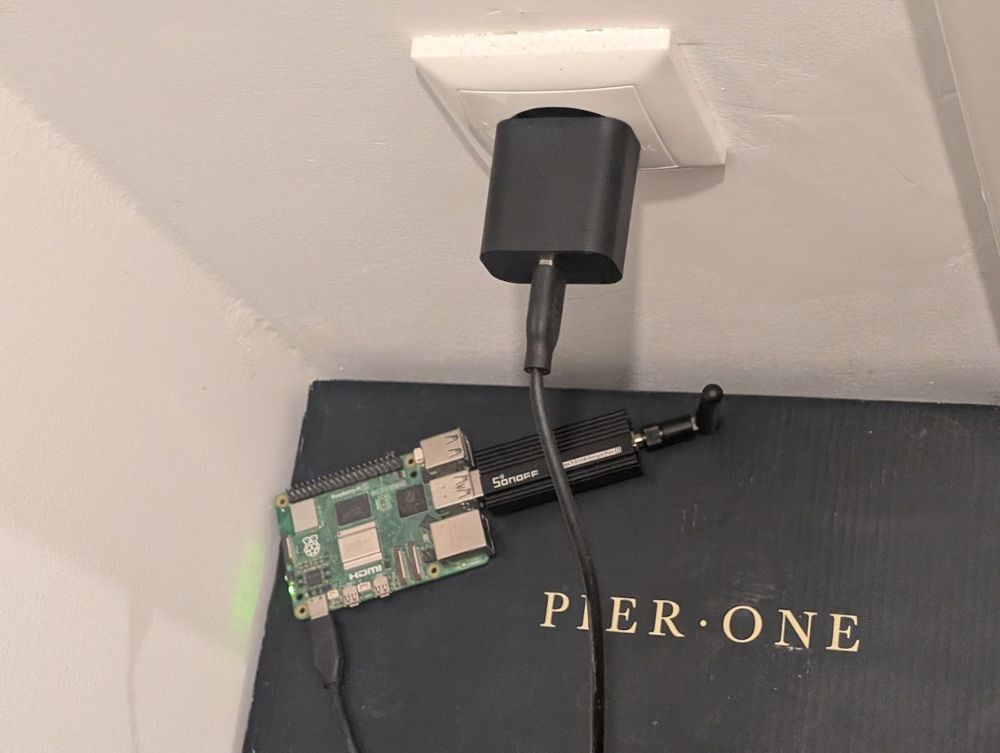
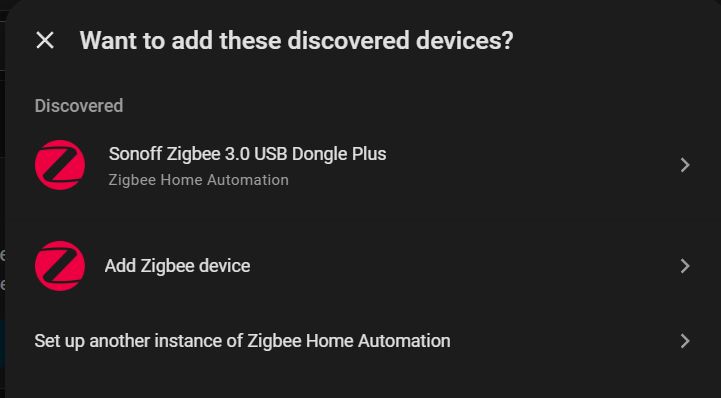
After booting, I set up the ZHA integration from the docs page. From there, I clicked "Add a device", and ZHA found the dongle right away, and I followed the prompts for automatic setup.
Step 2: Setting up the button and automations
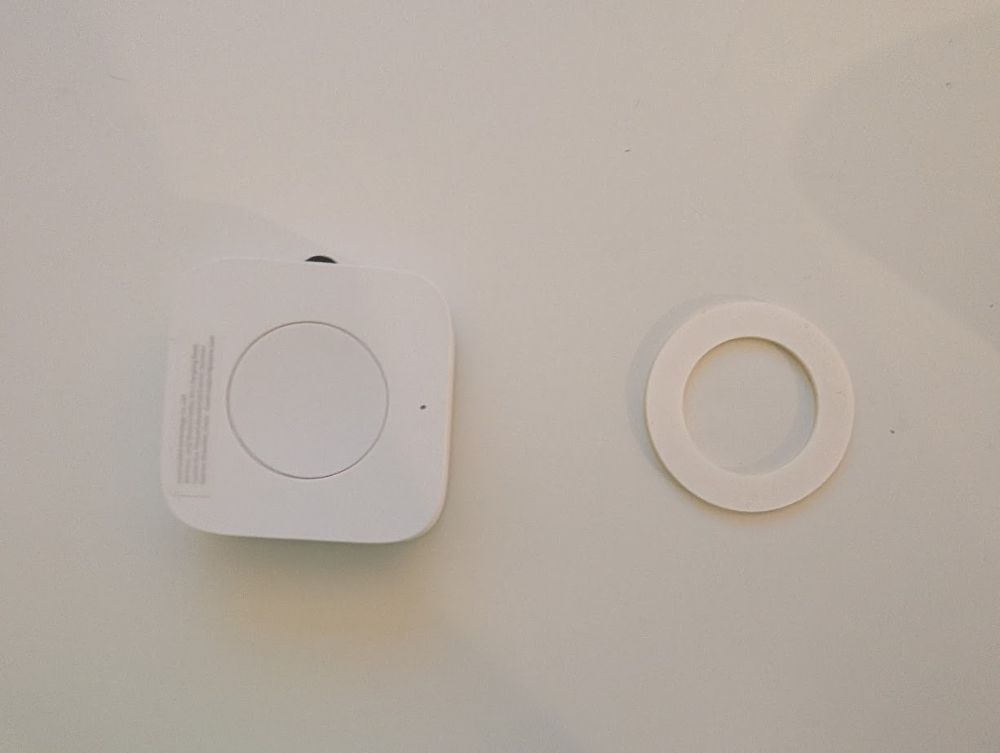
The button setup was fairly painless. I followed Aqara's instructions to put it into pairing mode. Home Assistant found it almost immediately. ZHA then started the "Interview" (where a Zigbee device is queried for information to work out exactly what kind of device it is and what it can do).
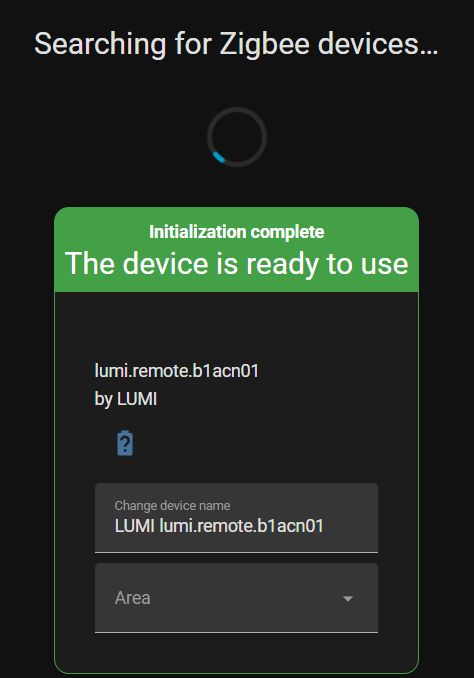
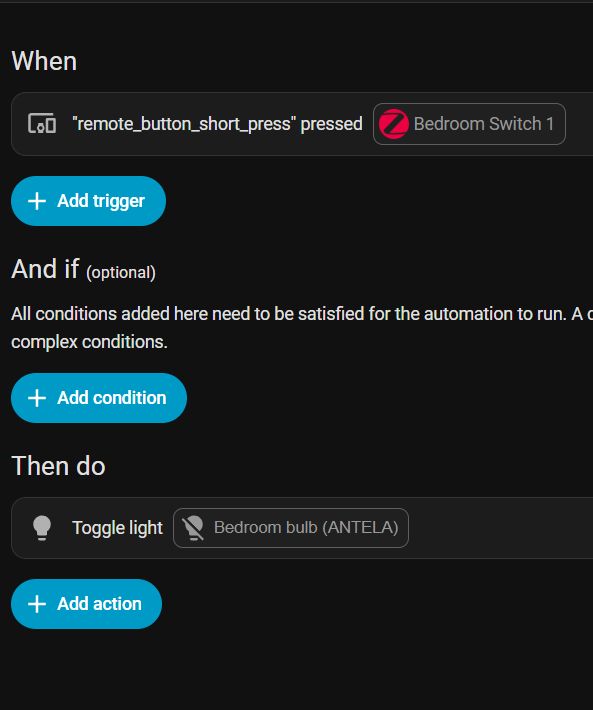
From there, I set up the automations in Home Assistant. The button exposes 4 different actions (short press, double press, long press, and release after long press), along with battery level. I added an automation to toggle the light when the switch is pressed.
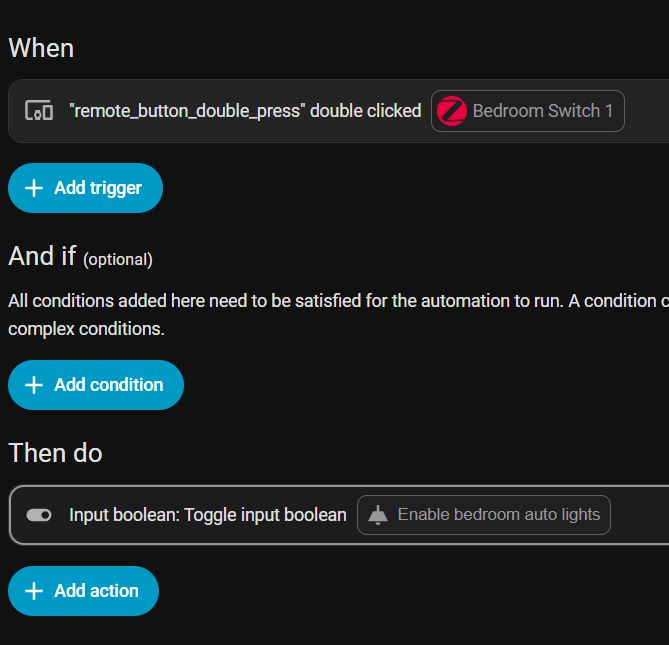
I added a second automation, to fix another peeve. The presence sensor is really more of a motion sensor, so when you don't move for a bit, it thinks you're away, and turns off. Or sometimes you don't want the lights to come on when you just roll in bed. This second automation would toggle the presence sensor functionality on double press.
Final product: Wall mounting
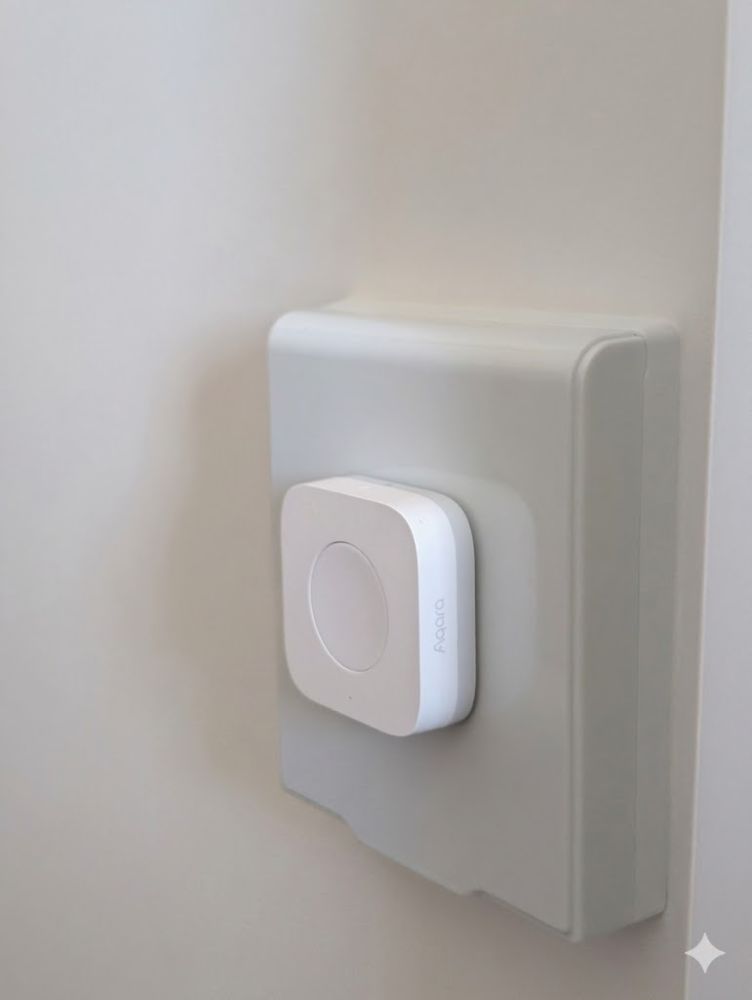
Finally, I set up the wall switch cover. This was really simple: the cover goes directly over the old switch with some adhesive, included in the package. The button also has an adhesive strip on its back, so I used that to mount it on the cover.
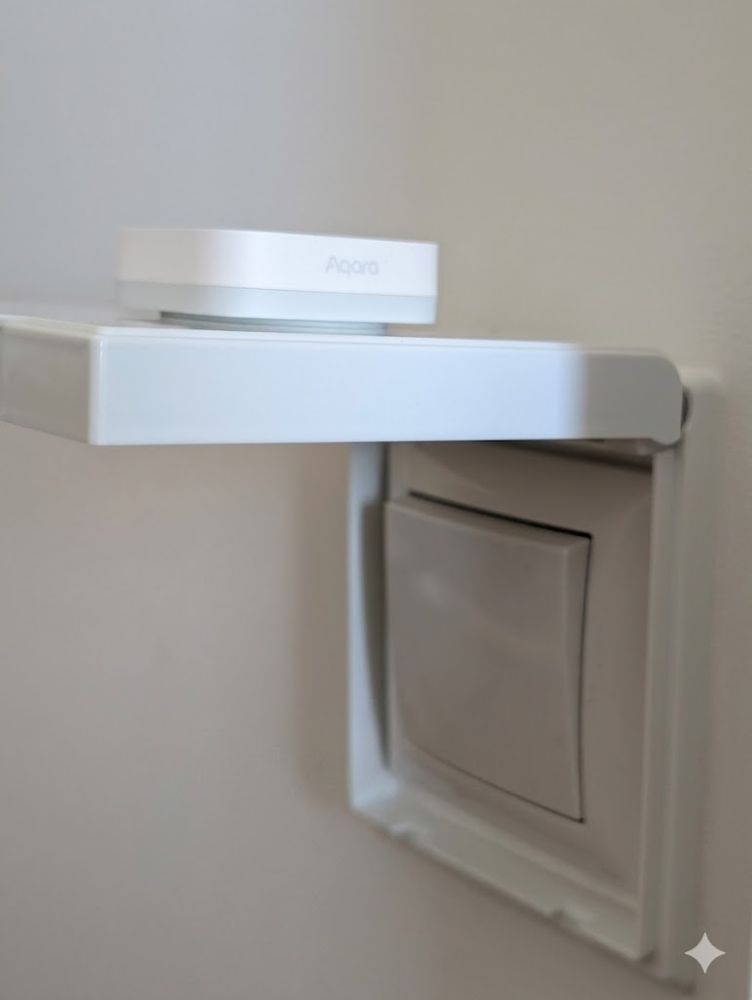
All done!
I write about my software engineering thoughts and experiments. Want to follow me? I don't have a newsletter; instead, I built Tentacle: tntcl.app/blog.shalvah.me.
